Good notifications tell you something you would otherwise miss. SpendixAI groups them into a small set of types, and you decide which ones you want.
What you can be told about
- Import ready: a statement import finished and is ready to review.
- Import failed: a statement could not be processed.
- Budget threshold: a budget reached its alert level or was exceeded.
- AI budget warning: AI usage is close to your monthly AI budget.
- Approval requested and Approval decided: for workspaces that use approvals.
- Weekly summary: a round-up of your spending.
- Security alerts: sign-ins and changes to your account security.
The notification centre
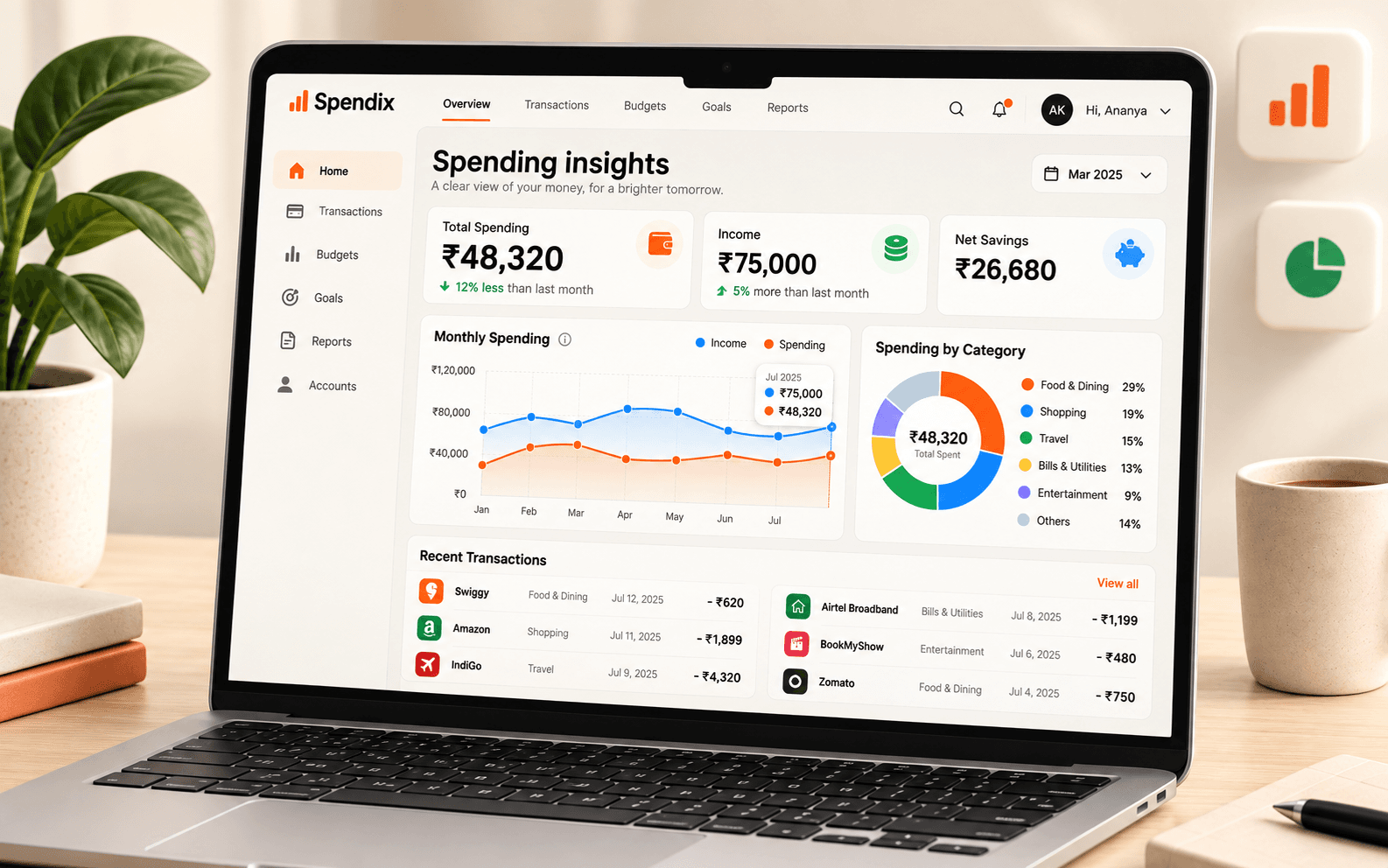
The bell in the header opens the notification centre. Unread items carry a badge, and notifications are grouped by the same types as above. Select one to go to the screen it is about, such as your import history for a finished import.
Choose what reaches you
Open Settings and then Notifications to switch each type on or off by channel. Keep import results and security alerts on, and be selective about the rest.
Make the weekly summary useful
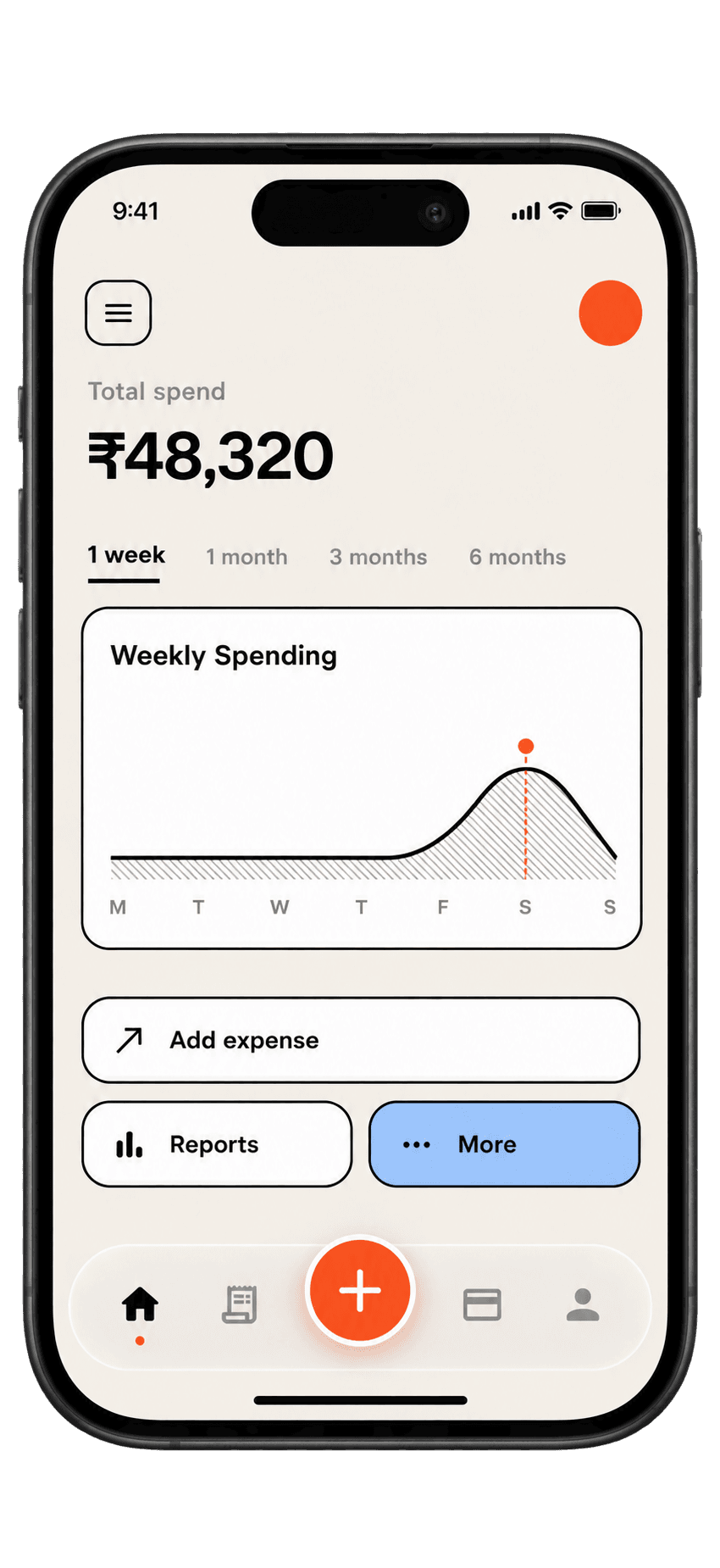
Use it as a prompt rather than a report. When it arrives, open the dashboard, compare this week with the last and check the top category. If something looks high, the Report library can show the reason.
Know where your money goes.
See income, expenses, categories, and changes over time in one clear view.