Your login
Google sign-in only. SpendixAI never asks for your bank login.
SpendixAI is built around one routine: bring your transactions in, let them be categorised, check them quickly and read what they say. Here is how each step works.
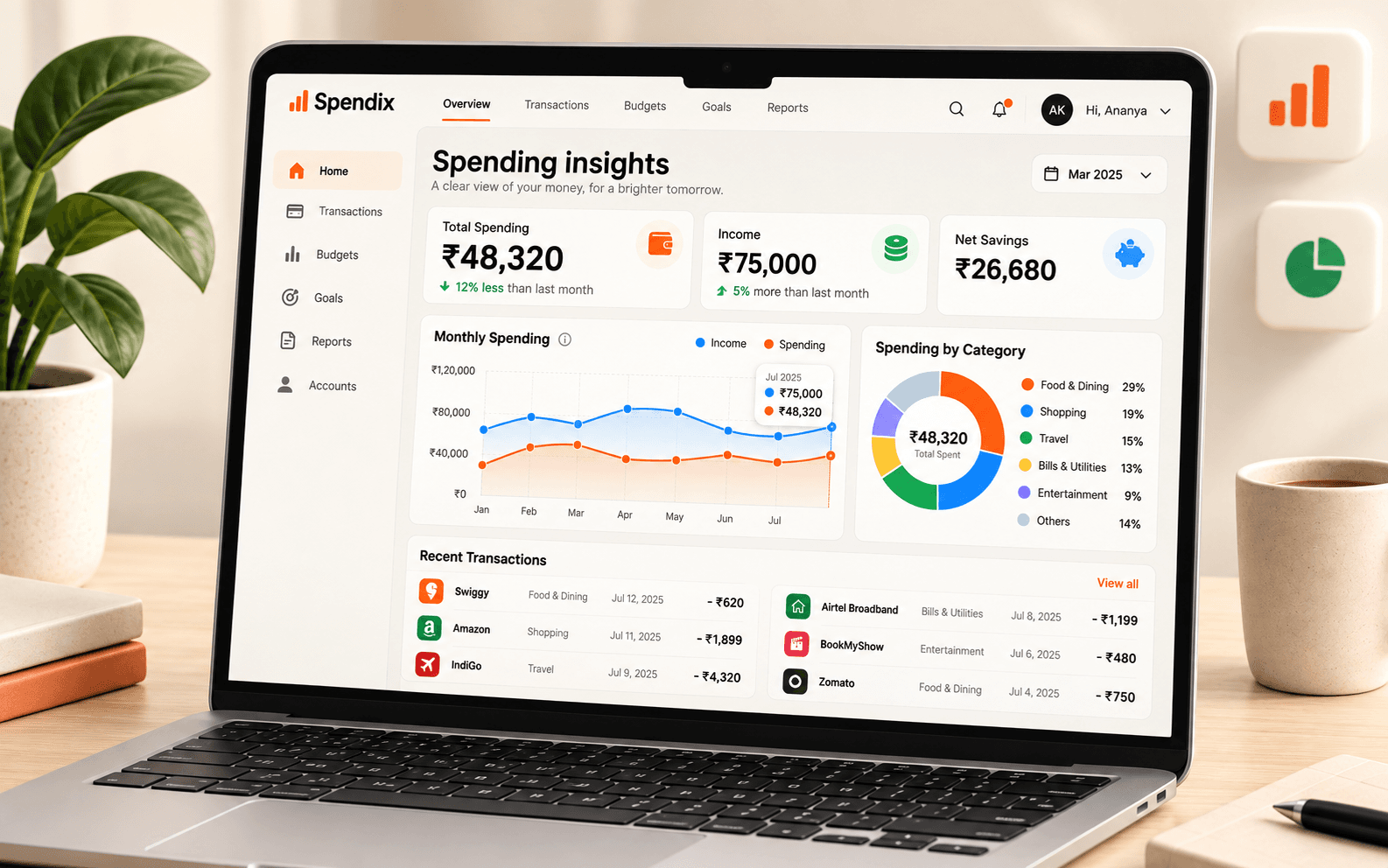
Choose Get started and continue with Google. The workspace it creates is the space that will hold your accounts, transactions and reports, kept separate from everyone else’s.
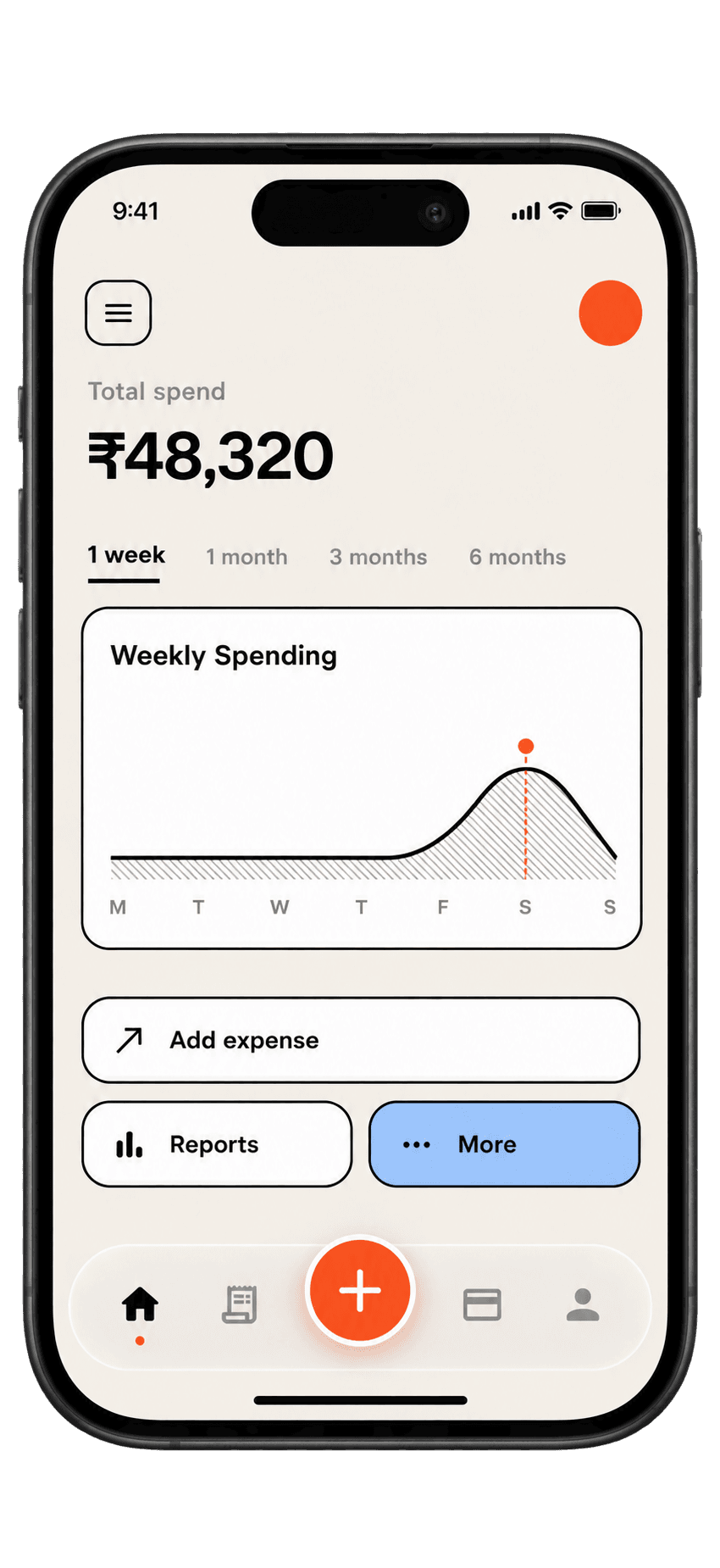
Create one account for each place your money moves. Every transaction is linked to one of them, which keeps imports clean and lets you compare accounts later.
Download a statement from your bank and drop it in. SpendixAI reads the transactions and shows you what it found before anything becomes part of your records.
SpendixAI resolves merchants and suggests a category for each transaction. The dashboard flags what needs a look, such as uncategorised transactions and possible duplicates.

Pick a period and see where the money went. Rows with a View link open the matching transactions, so a surprising number can be checked in a click.
Each of these has its own page with the details.
Trends, top categories and top merchants for the period you choose.
Learn moreSearch and filter every transaction, with a recycle bin that keeps deleted ones for 30 days.
Learn moreCategories and sub-categories with GST rates, ITC and tax-deductible settings.
Learn moreBank, card and cash accounts side by side, with the balance and activity of each.
Learn moreA report library, a report builder and exports for Tally, Zoho Books and QuickBooks.
Learn moreConnect an assistant with MCP and ask about your spending, with only the access you approve.
Learn moreA small, regular habit beats an occasional big clean-up.
Open the dashboard, check the trend and the top category, and fix any category that looks wrong.
Import last month’s statements, clear uncategorised items, read the dashboard and one report, and pick one change.
Open the outlier and duplicate reports, review card fees and refresh your emergency-fund target.
Google sign-in only. SpendixAI never asks for your bank login.
Switch AI features on or off, exclude accounts, or turn AI off entirely.
Learn moreExport it, delete transactions, or delete the whole workspace.
Learn moreConnect Claude or ChatGPT with MCP, start read-only and disconnect any time.
One short routine each month keeps your records clean and your decisions informed. Follow this checklist using your statements and reports.
Read articleA step-by-step routine for turning PDF, CSV and Excel bank statements into a clear expense record, with categories, accounts and duplicates handled.
Read article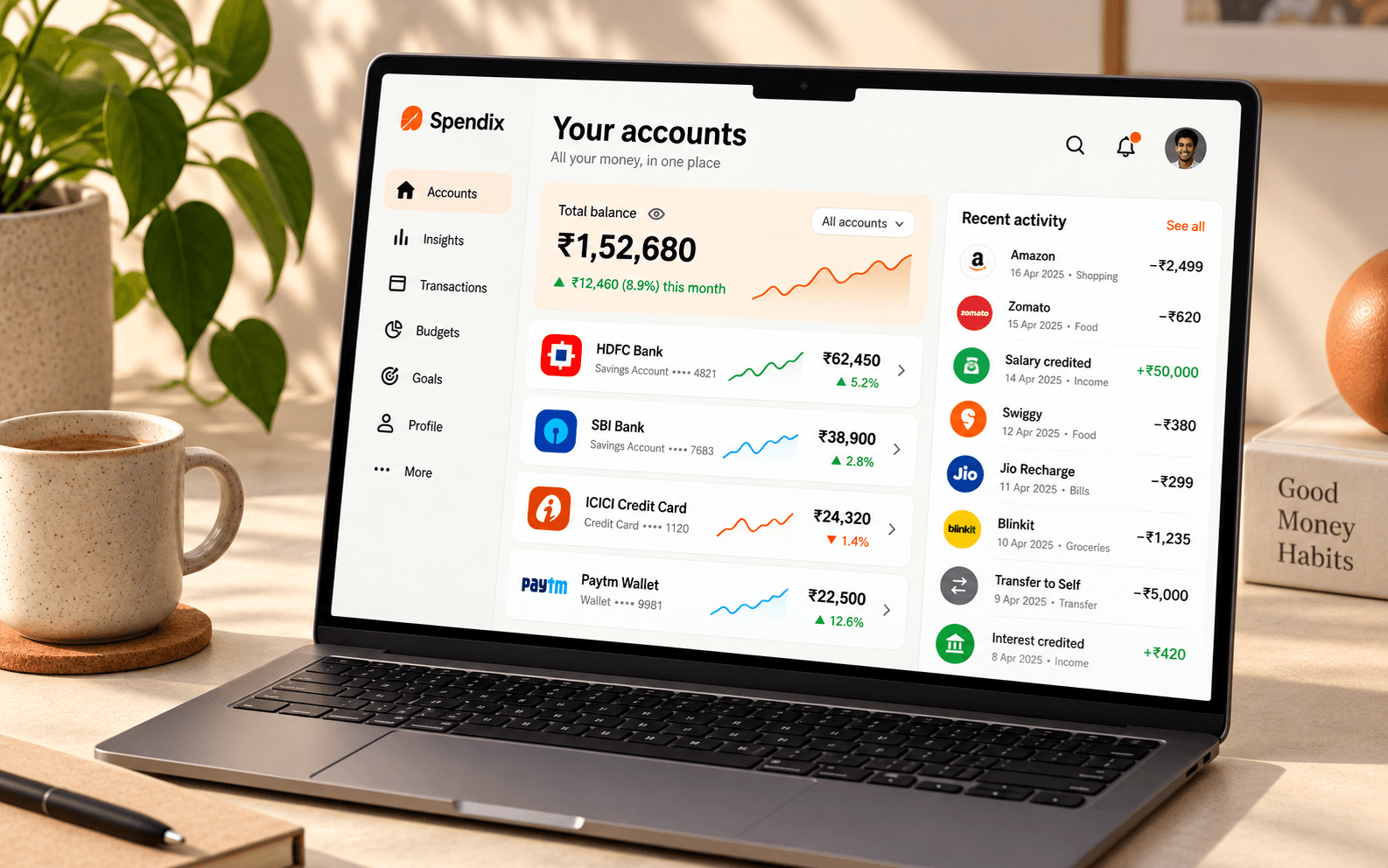
The Report library groups 25 ready-made reports by the question they answer: budgeting, saving, cash flow, debt, subscriptions, tax, fraud checks, merchants and accounts.
Read articleSpendixAI is an expense tracker. You import bank and card statements or add expenses yourself, SpendixAI categorises them, and dashboards and reports show where your money goes, including GST, receipts and multiple currencies.
Choose Get started and continue with Google. Signing in for the first time creates your account and your workspace, so there is no separate sign-up form or password.
Yes, there is a Free plan to start with: statement import, default categories, the dashboard and insights, and Google sign-in. Pro is coming soon and Team plans are priced for each organisation. Prices are in Indian rupees.
No. SpendixAI does not connect to your bank and never asks for net-banking logins. Your records come from statements you upload and expenses you add.
Yes. Sign in with the same Google account on any device and you will find the same workspace.
Create your account with Google and import your first statement.