PDF statements
Downloaded straight from your bank or card issuer. SpendixAI reads the transactions out of the document.
- Works for most bank layouts
- Keep the file exactly as downloaded
Your statements already hold every payment. SpendixAI reads them for you, so you review instead of retype.
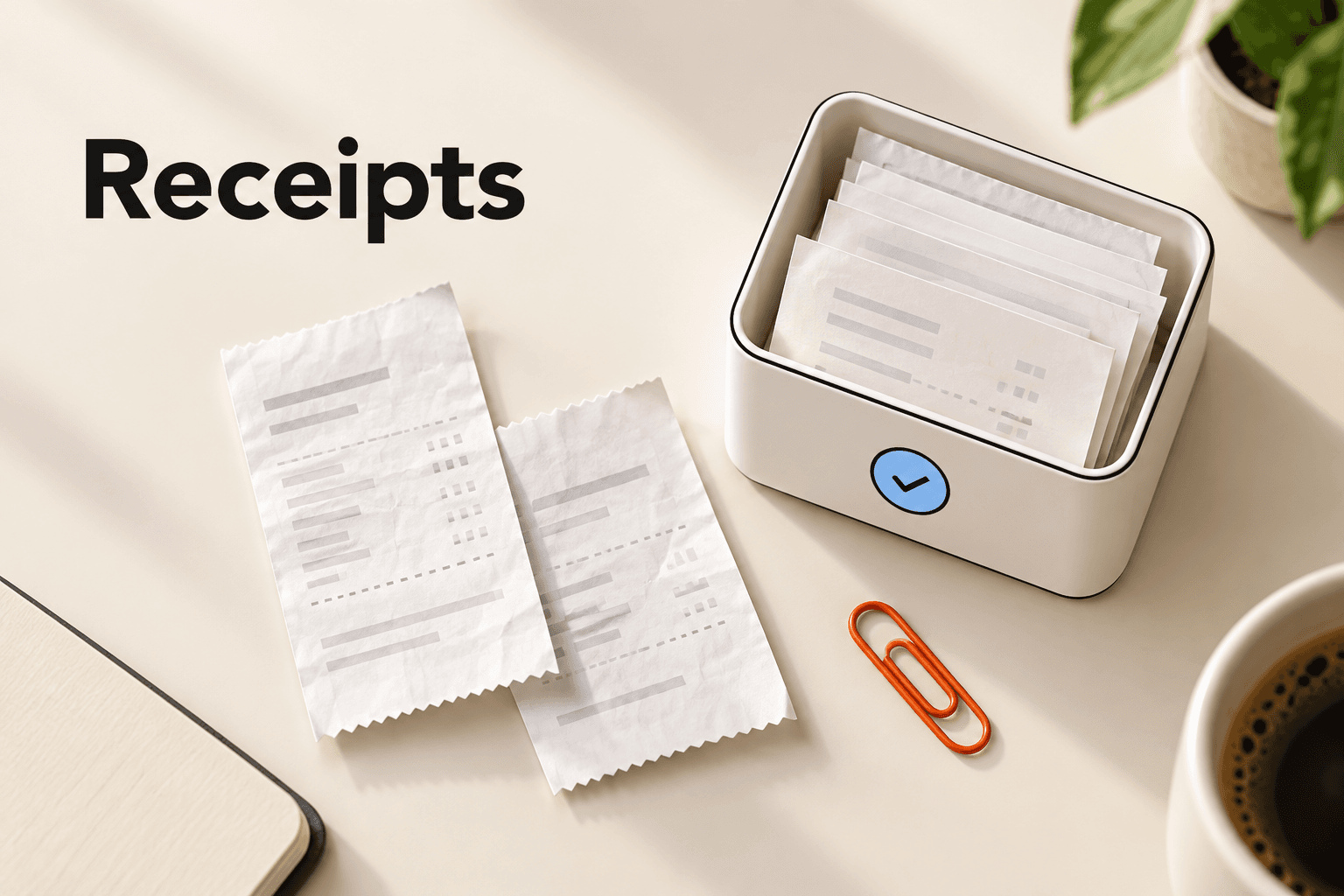
If your bank offers a choice, CSV or Excel are the most reliable. PDF works for most layouts too.
Downloaded straight from your bank or card issuer. SpendixAI reads the transactions out of the document.
Plain tables with the cleanest columns, so they are usually the most reliable to import.
Spreadsheet downloads from your bank or accounting tools, imported without retyping.
Open Import and pick the account the statement belongs to, so each transaction is linked to the right place.
Add one or more files as a batch, up to the size limit shown on the page.
It extracts each transaction and matches merchants.
Your rules and history come first, and AI only helps with what is left, if it is on.
Check what was found, then it is added to your records.
A notification tells you when the import is ready, or if it could not be processed.
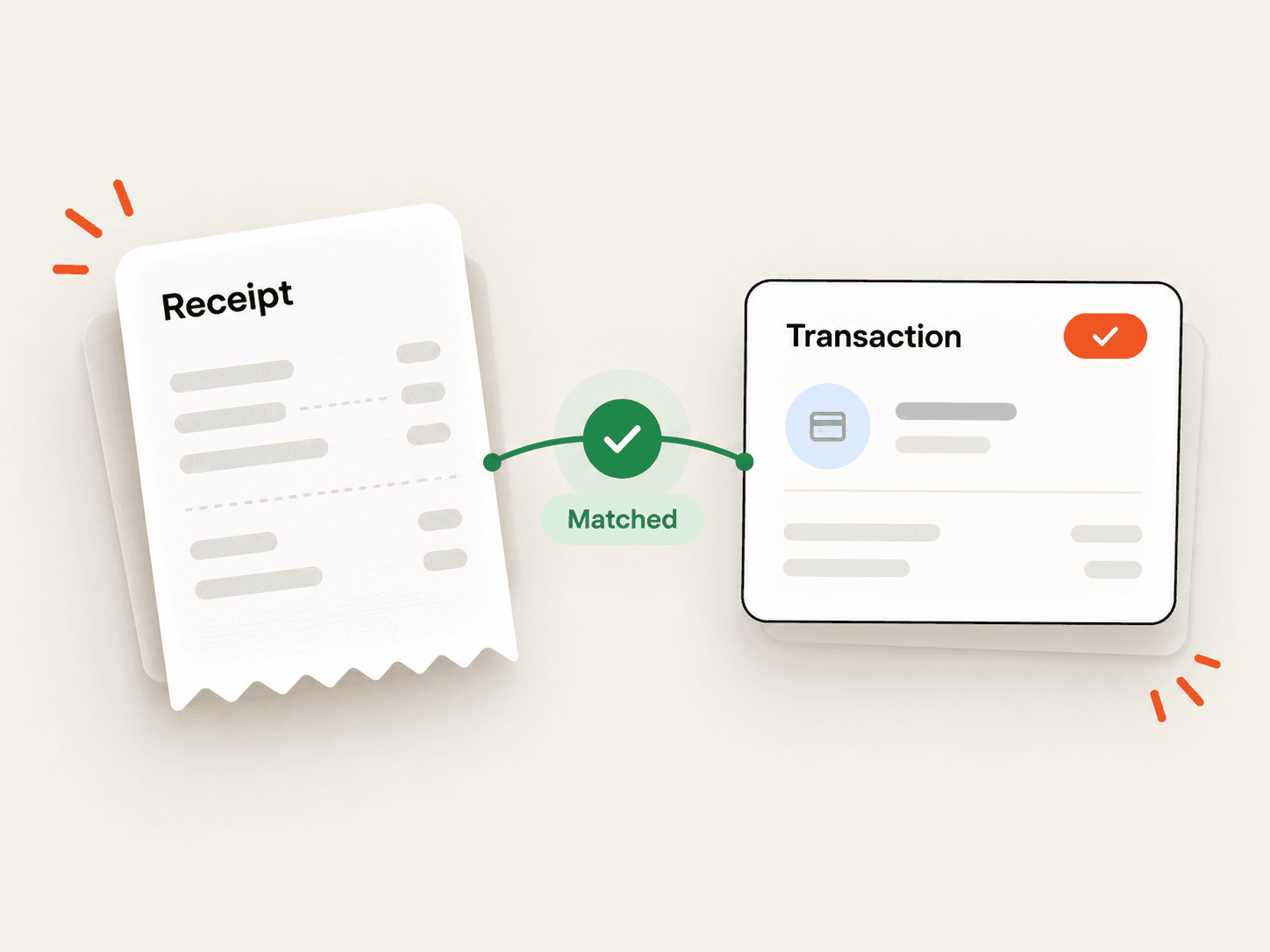
Whole calendar months mean nothing falls between two files.
Import each account separately, and pick the right account every time. Cards and savings stay separate.
Use the file exactly as the bank gave it, without editing or re-saving.
Compare the imported total with your statement once it is in.
Add aliases for merchants that appear under several names, and the next import matches them.
Import on the same day each month, straight after the statements arrive.
Possible duplicates are flagged, and the Possible duplicate charges report lists likely repeats. Overlapping statements are the usual cause.
Correct it once and the correction is remembered. Create a rule for merchants you see often.
You are notified, and the import history shows its status. Try a fresh copy, preferably as CSV or Excel.
Join the spellings with aliases in the Merchants directory.
Your statements are yours. They are used to build your records, and you decide how long they stay and what AI may do with them.
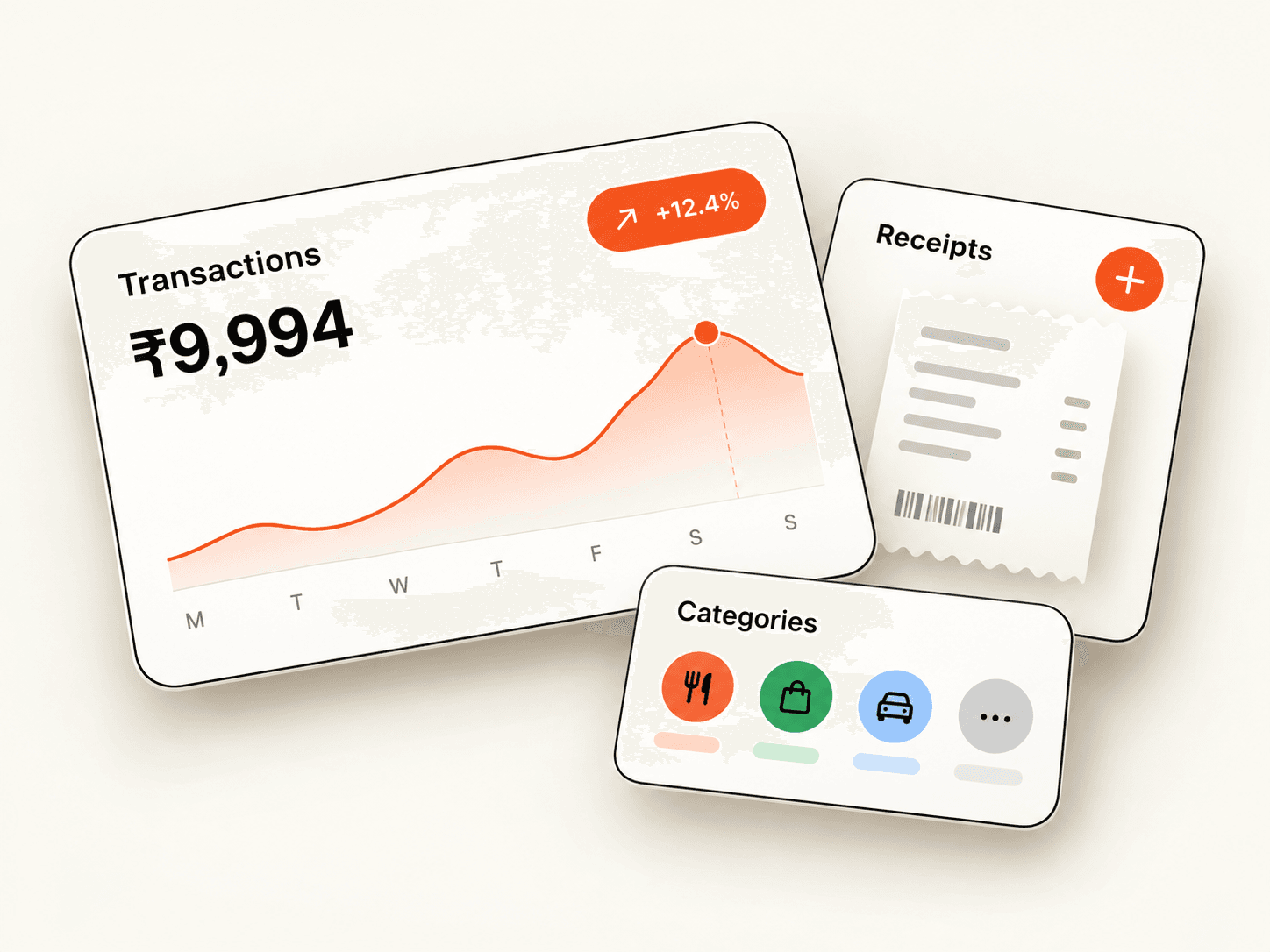
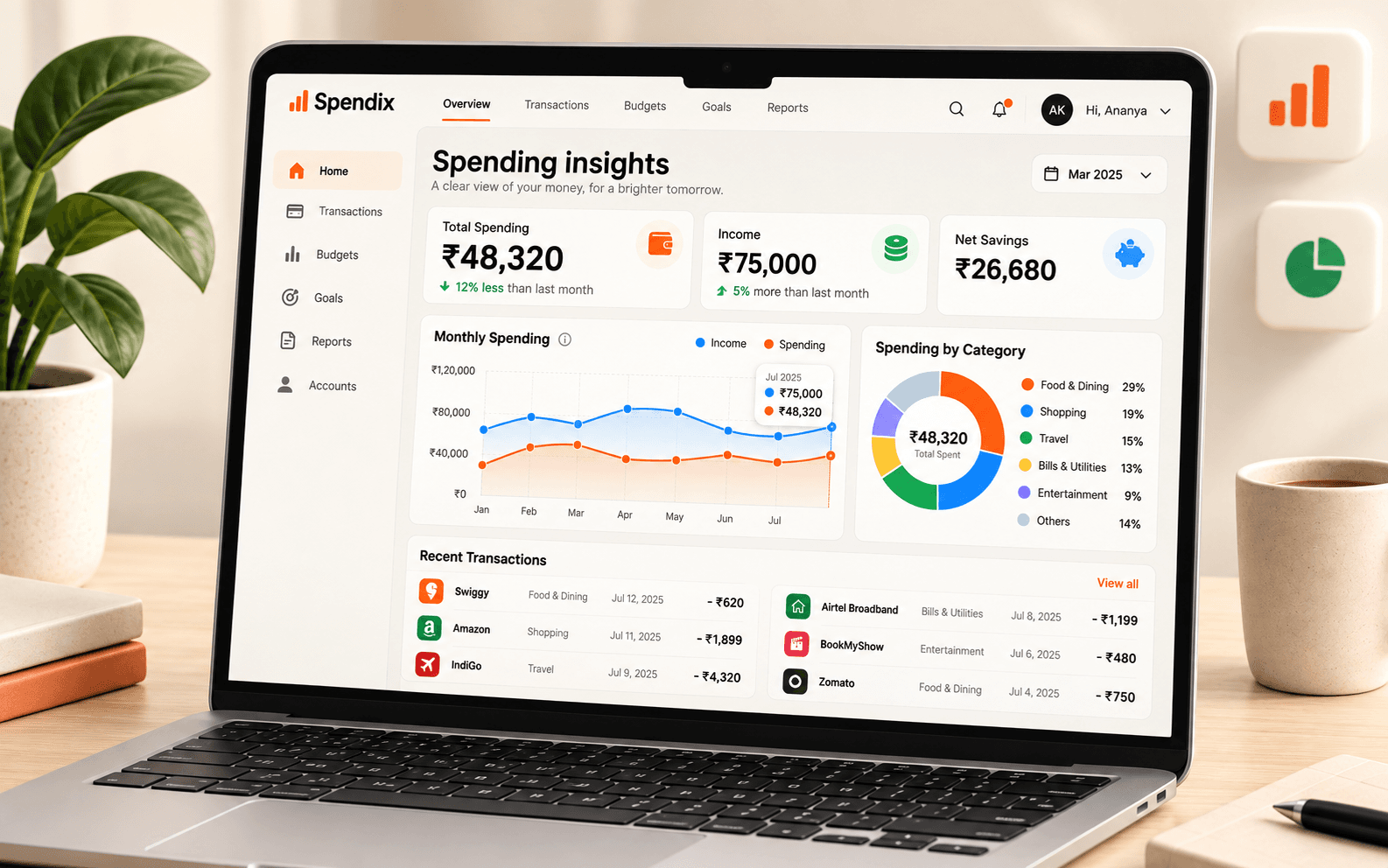
Once a statement is in, the whole product starts working from it. A single month is enough to see your top categories, and three months make the trends meaningful.
A step-by-step routine for turning PDF, CSV and Excel bank statements into a clear expense record, with categories, accounts and duplicates handled.
Read articleStatement lines such as UPI, NEFT, IMPS, NACH and POS look cryptic. Here is what each one means and how to find the merchant inside.
Read article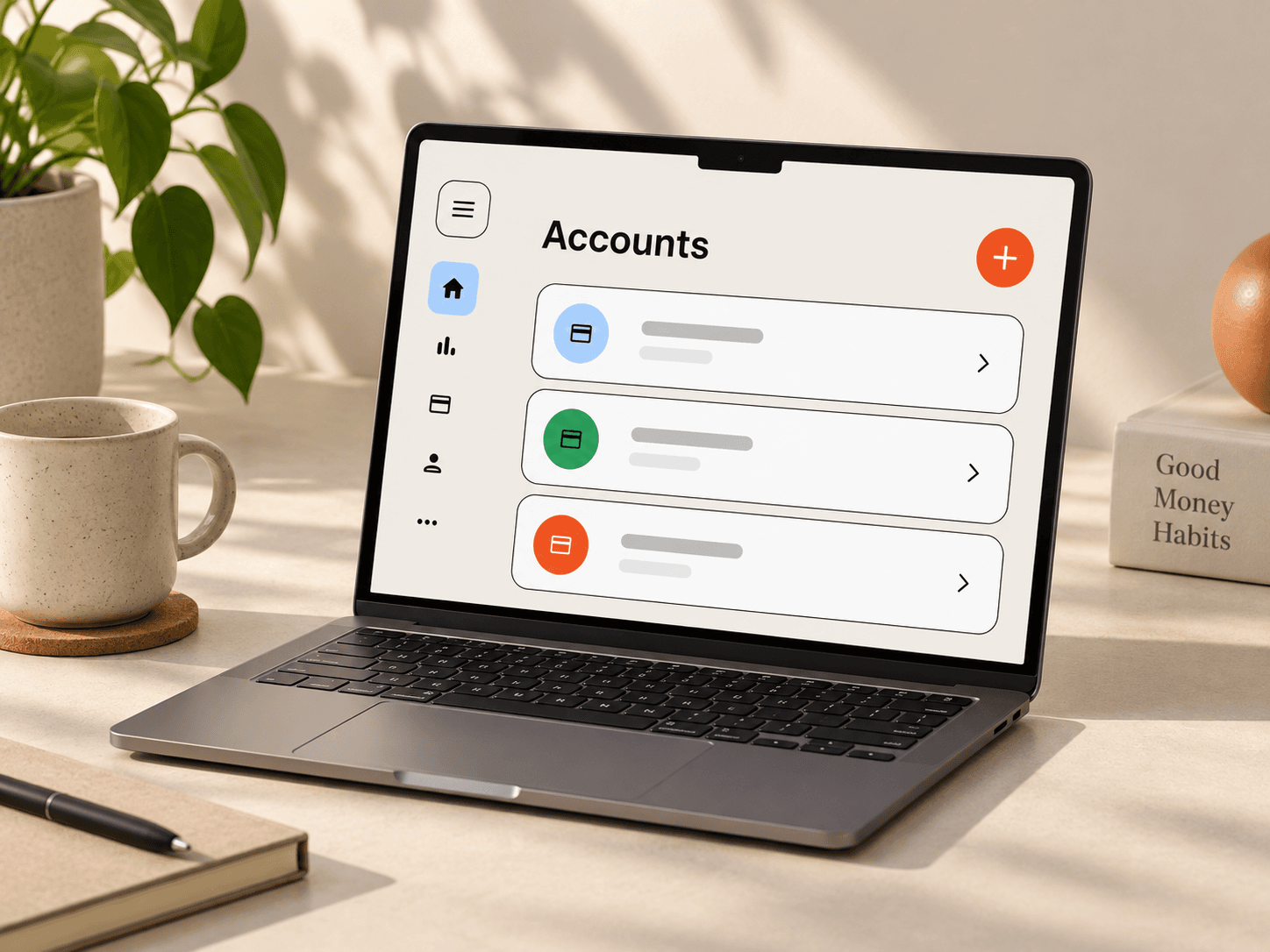
Accounts keep every transaction linked to where the money moved. Learn how to add bank, card and cash accounts and the details worth filling in.
Read articleBank and card statements as PDF, CSV or Excel files. After an upload, you review what was found before it becomes part of your records.
Yes. You pick the account the statement belongs to first, so each transaction is linked to the right bank account, card or wallet.
Yes. You can add files together as a batch, up to the size limit shown when you upload.
Possible duplicates are flagged for you to review, and the Possible duplicate charges report in the Report library lists likely repeats, such as the same amount to the same merchant within two days.
You get an Import failed notification, and your import history lists each batch with its status so you can see what went wrong and try again.
Yes. You can add a single expense or several at once, which is handy for cash spending.
Create your account with Google and drop in a PDF, CSV or Excel file.