When you pay a GST-registered supplier, the price you pay usually already includes GST. For a business, that tax can often be claimed back as input tax credit (ITC), which is why seeing the GST inside each expense is worth the effort.
The GST inside a price
Because the amount on your statement is GST-inclusive, the tax is found by working backwards: amount × rate ÷ (100 + rate). A purchase of ₹11,800 at an 18% rate contains ₹1,800 of GST on a base price of ₹10,000.
What input tax credit needs
The detailed rules are set by the GST law and your CA will know them, but the common ingredients are worth having ready:
- A valid tax invoice from the supplier, in your business’s name.
- Proof that the goods or services were received.
- Use for the business, not for personal consumption.
- Categories where credit is allowed. Some purchases are blocked from credit, so do not assume every business expense qualifies.
How to set it up in SpendixAI
- Give each category its GST rate and mark whether it is ITC-eligible and tax-deductible.
- Mark business transactions as business, so personal spending stays out of the totals.
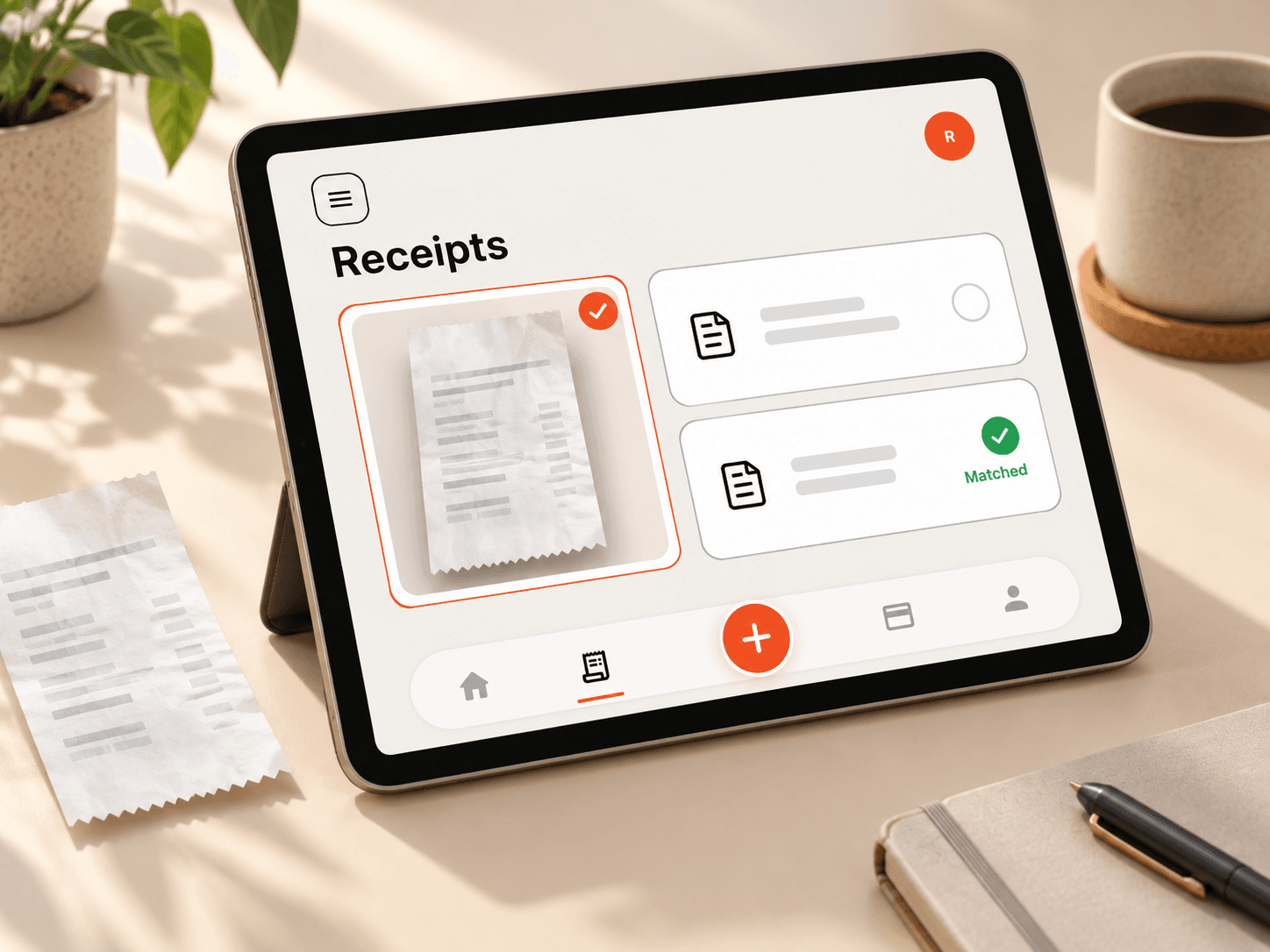
- Keep the receipt or invoice with the transaction it explains.
- Open the GST and ITC-eligible spend report in the Report library at month end.
That report lists ITC-eligible spending by category with an estimate of the GST included. The Tax-deductible expenses report does the same for deductions, with each category’s accounting code.
Hand over a clean record
Reports can be downloaded as CSV, so your CA can open them in a spreadsheet or import them into accounting software. A tidy month-end record usually saves more of their time than any single report.
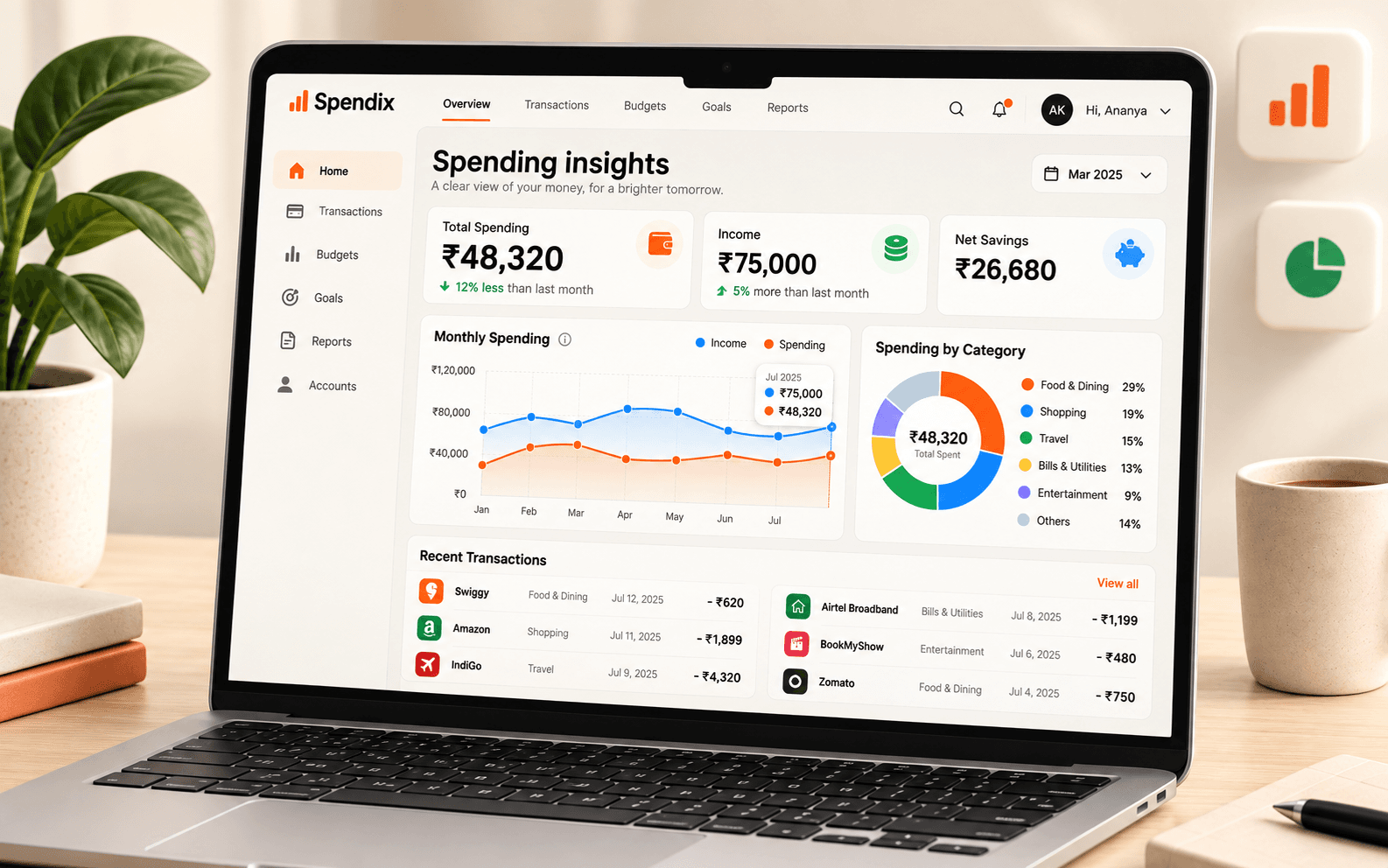
A clearer story in every report.
Explore totals, trends, and account activity in reports you can actually use.